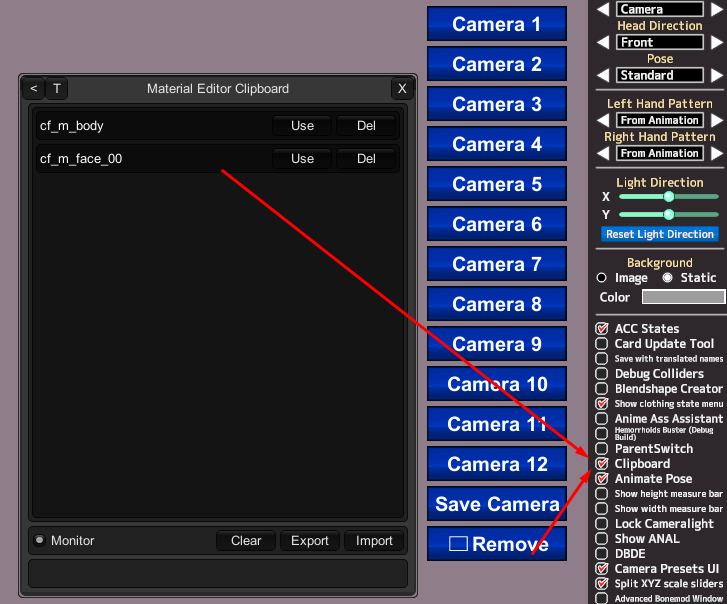
Can copy 2 edits (shaders and sliders shaders), without having to change the models (several times)?

zeidhan29

zeidhan29

KK Master
Joined
Sep 17, 2025
Messages
480
Reaction score
1,311
Points
93
Credits
13,660
I was recently looking at some models, and there are configurations within shaders like KKUTS or another shader that seem good to me. My question is if it's possible or if there's a tool that allows me to copy all these settings, both body and head, in one fell swoop. Material Editor only allows you to copy one edit, and it's a hassle to load a character, save it, and go back to the original one to copy other edits.

I would greatly appreciate your help. 😉

Or if what I'm saying is possible with the editor material, please guide me, I'm not aware of the utility of the plugins in their entirety.
 
gustavo40

gustavo40

KK Master
Joined
May 17, 2025
Messages
281
Reaction score
1,345
Points
93
Credits
14,150
I was recently looking at some models, and there are configurations within shaders like KKUTS or another shader that seem good to me. My question is if it's possible or if there's a tool that allows me to copy all these settings, both body and head, in one fell swoop. Material Editor only allows you to copy one edit, and it's a hassle to load a character, save it, and go back to the original one to copy other edits.

I would greatly appreciate your help. 😉

Or if what I'm saying is possible with the editor material, please guide me, I'm not aware of the utility of the plugins in their entirety.


MaterialEditorClipboard
 
zeidhan29

zeidhan29

KK Master
Joined
Sep 17, 2025
Messages
480
Reaction score
1,311
Points
93
Credits
13,660
First of all, thank you so much for helping me and responding.

This is probably redundant, given how you show it in the screenshot, but is the plugin also available for KKS, or can I use it on that version? It's the version I'm playing. :(
 
S

Stigma

KK Master
Joined
Apr 5, 2025
Messages
611
Reaction score
3,401
Points
93
Credits
38,454
First of all, thank you so much for helping me and responding.

This is probably redundant, given how you show it in the screenshot, but is the plugin also available for KKS, or can I use it on that version? It's the version I'm playing. :(
Here

I say you should update to the HF Pacth, but considering you have small storage space, maybe try the Light patch
 
zeidhan29

zeidhan29

KK Master
Joined
Sep 17, 2025
Messages
480
Reaction score
1,311
Points
93
Credits
13,660
Here

I say you should update to the HF Pacth, but considering you have small storage space, maybe try the Light patch
In fact, I have the latest version of hf patch installed, but from KKS, so it's probably not included in this release. xd

In fact, and reading this carefully, this plugin isn't included, although I find it much more useful and better than the mass shader editor. :/

But that's the least of it, boss.
You really are the hero we all need. Thank you so much for sharing the plugin with me. I really appreciate the gesture. 😎😎😎😎
 
M

Muffy

Well-known Member
Joined
Dec 5, 2024
Messages
44
Reaction score
108
Points
33
Credits
1,100
You can do this MUCH FASTER and it is much simpler from within the Studio itself. I do it all the time when copying configs around or doing any material changes whatsoever. Still have to do one at a time, but you can just load both characters at once and click between them!

Once I have materials set up the way I like on a particular character in Studio, I export it, then pop that export into the maker to "finalize" it and create a fully usable card.
 
zeidhan29

zeidhan29

KK Master
Joined
Sep 17, 2025
Messages
480
Reaction score
1,311
Points
93
Credits
13,660
You can do this MUCH FASTER and it is much simpler from within the Studio itself. I do it all the time when copying configs around or doing any material changes whatsoever. Still have to do one at a time, but you can just load both characters at once and click between them!

Once I have materials set up the way I like on a particular character in Studio, I export it, then pop that export into the maker to "finalize" it and create a fully usable card.
Dude, what you're suggesting is one of the best ways to simplify the work. Perhaps the only thing I'm a little hesitant about is exporting and using Card Image Replacer. Beyond that, your answer is also a very viable option. Although the only drawback is that this also overwrites or adds masks to the initial model that aren't needed (for example, changing the normal map, the normal map detail, or adding an alpha mask, or even importing a texture that's outside the normal resolution). It's the only reason I was looking for a plugin that does "copy edits" en masse without touching the masks.
 
M

Muffy

Well-known Member
Joined
Dec 5, 2024
Messages
44
Reaction score
108
Points
33
Credits
1,100
For card image replacer, this should still work perfectly fine. I don't use any exported cards for use in the studio because they can have weird issues with missing data, so I always pop 'em into the maker to make a final save, and have a "real" card, if that makes sense. You should be free to alter this card in any way you see fit, it will be treated like any other card.

Various texture maps being replaced when copying is an unfortunate drawback, but it is simple enough to export the maps manually. I have a "foundation" preset I modified from Anna Anon for face/body utilizing particular normalmaps, linemasks, detailmasks, etc. If I am popping this onto another character, it is either to serve as a complete replacement, or to make further modifications easier since all those settings will already be saved and baked into the card when I export it.

Furthermore, I generally don't want whatever texture maps the original card was using anyway as the ones I intend to use are made for the base preset I have configured. There are a few exceptions to this with things like nipples, genitalia, and hair. These are simple enough to export piecemeal and preserve if I intend to keep them.

Linemasks or normals for skin details can also be a bit problematic, but TBH it is easier to just export ALL of these from the game, and then import them via Studio. You can pick whatever you want on the fly and modify it to a much greater extent in Studio than in Maker.

Honestly, the Maker is total trash with how much it gets in your way with trying to make changes. It also not supporting post-processing is a huge negative, because your card WILL look different in the Studio no matter what. I mainly use it just to make the actual body/face and play dress-up simulator for more hours than I'd like to say. But once that is all done, I pop it into Studio to carry out any and all material alterations because it is just sooooo much faster.

One more protip, if you've found creating overlays to be a pain in the ass since you have to "bake" all the stuff you might want into ONE overlay while constantly going back and forth from studio to your image editor, fear no more.

Copy the face and/or body material, then set the copy to some kind of Alpha shader. I generally use MainItemAlphaPlus, but others can provide a slightly different appearance for things like sweat or other fluids. Set the Render Queue to one digit above the original material, and then import your desired overlay. Bam, you now have that overlay on the character, and you can tweak transparency/customambient, etc right there.
You can even make multiple copies and layer several overlays atop one another.

This is what I have done to create some of the characters I have been working on, for example, Rio from Summer Memories. She is a hodgepodge of like 14 different overlays, many of which I severely edited to preserve specific details I wanted to keep without interfering with others.


Q4nBKAW.png


There is a pretty serious drawback to overlaying several times like this via ME: you will end up with textures clipping through meshes. This can be fixed by either throwing in a body alpha mask (to hide those parts entirely) or simply tesselating the clothing a nudge or two so the clipping goes away. The cool thing is, if you export a character like this from the studio, those material copies are preserved. You can then pop that export into maker, and they will still be there.

A real downside to this kind of severe abuse of the ME is it MASSIVELY bloats the size of cards. Do not ever post a card like that, it will piss people off. To make a card prepared in this fashion "release ready" (and to also solve the clipping problem permanently), you would have to bake all the combined overlay textures into a single overlay, to use via the actual overlay plugin. But you can use ME layering and editing to make the fine real-time adjustments, like "oh that looks better with this transparency", or "oh that looks better with this slight change to the tint", etc. This has massively improved the overall workflow of material editing and overlay creation for me. Don't have to just sorta piss in the wind with your image editor.
 
Last edited:
zeidhan29

zeidhan29

KK Master
Joined
Sep 17, 2025
Messages
480
Reaction score
1,311
Points
93
Credits
13,660
Para reemplazar imágenes de tarjetas, esto debería seguir funcionando perfectamente bien. No uso ninguna tarjeta exportada para usar en el estudio porque pueden tener problemas extraños con datos faltantes, así que siempre las coloco en el creador para hacer un guardado final y tengo una tarjeta "real", si eso tiene sentido. Deberías tener la libertad de modificar esta tarjeta de la forma que creas conveniente, será tratada como cualquier otra tarjeta.

Reemplazar varios mapas de textura al copiarlos es un inconveniente desafortunado, pero es bastante sencillo exportarlos manualmente. Tengo un ajuste preestablecido de "base" que modifiqué de Anna Anon para rostro/cuerpo utilizando mapas normales, máscaras de línea, máscaras de detalle, etc. particulares. Si lo coloco en otro personaje, es para que sirva como reemplazo completo o para facilitar modificaciones adicionales, ya que todas esas configuraciones ya se guardarán y se incorporarán a la tarjeta cuando la exporte.

Además, generalmente no quiero ningún mapa de textura que estuviera usando la tarjeta original, ya que los que pretendo usar están hechos para el ajuste preestablecido base que he configurado. Hay algunas excepciones a esto con cosas como pezones, genitales y cabello. Son lo suficientemente simples como para exportarlos poco a poco y conservarlos si tengo la intención de conservarlos.

Las máscaras de línea o normales para los detalles del aspecto también pueden ser un poco problemáticas, pero, para ser honesto, es más fácil simplemente exportar TODAS ellas desde el juego y luego importarlas a través de Studio. Puedes elegir lo que quieras sobre la marcha y modificarlo en mucha mayor medida en Studio que en Maker.

Honestamente, el Creador es una basura total por lo mucho que se interpone en tu camino al intentar hacer cambios. Tampoco admite el posprocesamiento, lo cual es un gran inconveniente, porque tu tarjeta se verá diferente en el estudio pase lo que pase. Lo uso principalmente solo para hacer el cuerpo/cara real y jugar al simulador de disfraces durante más horas de las que me gustaría decir. Pero una vez hecho todo eso, lo introduzco en Studio para realizar todas y cada una de las modificaciones del material porque es muchísimo más rápido.

Un consejo más: si has descubierto que crear superposiciones es un fastidio, ya que tienes que "hornear" todo lo que quieras en UNA superposición mientras vas y vienes constantemente del estudio a tu editor de imágenes, no temas más.

Copie el material de la cara y/o el cuerpo, luego configure la copia en algún tipo de sombreador Alfa. Generalmente uso MainItemAlphaPlus, pero otros pueden proporcionar una apariencia ligeramente diferente para cosas como el sudor u otros fluidos. Establezca la cola de renderizado en un dígito por encima del material original y luego importe la superposición deseada. Bam, ahora tienes esa superposición en el personaje y puedes modificar la transparencia/ambiente personalizado, etc. allí mismo.
Incluso puedes hacer varias copias y superponer varias capas una encima de la otra.

Esto es lo que he hecho para crear algunos de los personajes en los que he estado trabajando, por ejemplo, Río de Summer Memories. Ella es una mezcolanza de como 14 superposiciones diferentes, muchas de las cuales edité severamente para preservar detalles específicos que quería conservar sin interferir con los demás.


Q4nBKAW.png


Superponer varias veces de esta manera a través de ME tiene un inconveniente bastante grave: terminarás con texturas que se recortan a través de las mallas. Esto se puede solucionar colocando una máscara alfa en el cuerpo (para ocultar esas partes por completo) o simplemente colocando una o dos capas en la ropa para que el recorte desaparezca. Lo bueno es que si exportas un personaje como este desde el estudio, esas copias materiales se conservan. Luego puedes enviar esa exportación al fabricante y seguirán ahí.

Una verdadera desventaja de este tipo de abuso severo del ME es que aumenta ENORMEMENTE el tamaño de las cartas. Nunca publiques una tarjeta como esa, enojará a la gente. Para que una tarjeta preparada de esta manera esté "lista para su lanzamiento" (y también para resolver el problema de recorte de forma permanente), tendría que hornear todas las texturas de superposición combinadas en una sola superposición, para usarlas a través del complemento de superposición real. Pero puedes usar capas y edición ME para hacer los ajustes finos en tiempo real, como "oh, eso se ve mejor con esta transparencia", o "oh, eso se ve mejor con este ligero cambio en el tinte", etc. Esto ha mejorado enormemente el flujo de trabajo general de edición de material y creación de superposiciones para mí. No tienes que simplemente orinar en el viento con tu editor de imágenes.
I'll tell you something, I really admire how you work and the way you've taken the time to explain things to me, and I totally agree with you. The maker can end up being a real pain in the ass when it comes to transferring the model to the studio because many details are even lost, but seeing how you work and how demanding it can be to use multiple layers in the same material, I'll just say never give up. Although you've currently opted for a more "economical" option, I don't think I've ever used the option of duplicating, tripling, or quintuple layers, since my PC is a toaster. My works are simple and may even end up being ugly in other people's eyes, but my point is that if you manage to get the desired results even when it's not the method you usually use, it's still a victory. (I just wanted to copy shaders and sliders - no mask- of head and body without having to open my notepad.)
 
M

Muffy

Well-known Member
Joined
Dec 5, 2024
Messages
44
Reaction score
108
Points
33
Credits
1,100
Honestly, something which thoroughly impresses me about Studio is how so much shit that shouldn't work just works. It is basically Blender Lite. Material Editor is pretty much shader nodes plucked right from Blender, the only difference is it's jank as all fucking hell. Like, you're telling me if I set this particular object to this specific render queue, it shows eyebrows through it, but if I use this other object, give it the same settings, it doesn't work? Why? It's jank. Animating is also extremely funny to me. The in-game rigs SUCK so some insane gooner wrote a plugin just to let you parent any of the bajillion unusable bones in IK to a folder so you can animate the folder. NodeConstraints is literally creating an IK rig...using an IK rig which already exists.

But yes! Toaster or not, you gotta work around the weird ass quirks of the Studio. It was never meant to work with the things BetterRepack enable it with. There are so many weird little things you just have to get used to. Like, would it be nice to copy outfits without them fucking up every god damn accessory, even when I tell it DONT copy the fucking accessories? YES. That would be GREAT. How do you get around this? By spending way too much time isolating each outfit into constituent parts of accessories only, and clothes only, and importing one at a time.
 
LordBubnub

LordBubnub

Veteran Member
Joined
Oct 9, 2025
Messages
231
Reaction score
661
Points
93
Credits
7,472
But yes! Toaster or not, you gotta work around the weird ass quirks of the Studio. It was never meant to work with the things BetterRepack enable it with. There are so many weird little things you just have to get used to. Like, would it be nice to copy outfits without them fucking up every god damn accessory, even when I tell it DONT copy the fucking accessories? YES. That would be GREAT. How do you get around this? By spending way too much time isolating each outfit into constituent parts of accessories only, and clothes only, and importing one at a time.

Hi, this is completely unrelated to the title of the forum. But I also have this problem with accessories. In the character maker, I have a hard time getting the clothes and accessories in an outfit and giving it to another character. What do you mean when you say, "isolating each outfit into constituent parts of accessories only, and clothes only, and importing one at a time." I'm actually new to the whole program so I don't know how copy outfits along with all the accessories properly.
 
M

Muffy

Well-known Member
Joined
Dec 5, 2024
Messages
44
Reaction score
108
Points
33
Credits
1,100
Hi, this is completely unrelated to the title of the forum. But I also have this problem with accessories. In the character maker, I have a hard time getting the clothes and accessories in an outfit and giving it to another character. What do you mean when you say, "isolating each outfit into constituent parts of accessories only, and clothes only, and importing one at a time." I'm actually new to the whole program so I don't know how copy outfits along with all the accessories properly.
Suppose I have two characters, and both are using accessory hairs. Let's say I want the accessory hairstyles from one particular character's outfits on the second character, but ONLY the hair.

What I usually have to do is go to the first character's outfits and remove everything BUT the hair, and save each as a clothing coordinate. This effectively saves the accessory hairstyle as a loadable piece of clothing.

Next, I load up the character which is going to receive the hair. I delete all of the hair accessories they are using, but keep the rest of the outfit intact and save those as their own clothing coordinates. This allows me to have an "unfuck" button for the next steps.

With the hair accessories removed from the character, I can then load the desired hair coordinate onto the character. If it fails or fucks up in some way, I can just load up the hairless outfit and try it again.

Additionally, many accessory hairstyles are not made to some kind of standard. So like, one character card might put all the hair items on slots 30-60. But another might have all of the hair accessories randomly dispersed throughout all slots.

What I do for my cards is optimize this layout before saving a purely clothes or purely hair coordinate, and shove all the hair accessories either at the very top of the list, or somewhere in the 30-50 range. So on a hairstyle I'm looking to save and re-use on other cards, I will use the "Transfer" feature to move and compress all of those hair accessories into those slots.

For the character on the receiving end of the transplant, I will move and compress all of the NON-HAIR accessories so they are outside of this range. This way, there are no conflicts when merging the hair coordinate onto it.

This process is still WILDLY finicky, but if you save coordinates of the hair all by itself, and save a coordinate of the clothes/NON-HAIR accessories you want to merge them with, you at least save a lot of time if it screws up since you can just load back to a hairless card with the outfit you want.

Sometimes, this process just doesn't fricking work at all no matter how much I fuck with it. In these situations, I actually just make two copies of the character in Studio and put them in the same exact pose. One character has a hidden body (done by unchecking the body renderer in material editor), the copy however has everything BUT body disabled.

The end result of this is I can now load the hair accessory coordinate which royally fucks up the rest of the outfit on the head-only character, and simply turn off/hide all the clothing and hide their body, and the body character remains intact with the outfit, minus the hair since their whole face is disabled and accessories are turned off.

This of course is janky as all hell, but it does work. To make posing this kind of frankenstein easier, I parent both characters head and neck nodes to one another in NodeConstraints, so any head movements of the body character will translate 1:1 on the head only character.
 
LordBubnub

LordBubnub

Veteran Member
Joined
Oct 9, 2025
Messages
231
Reaction score
661
Points
93
Credits
7,472
What I usually have to do is go to the first character's outfits and remove everything BUT the hair, and save each as a clothing coordinate. This effectively saves the accessory hairstyle as a loadable piece of clothing.

Next, I load up the character which is going to receive the hair. I delete all of the hair accessories they are using, but keep the rest of the outfit intact and save those as their own clothing coordinates. This allows me to have an "unfuck" button for the next steps.

With the hair accessories removed from the character, I can then load the desired hair coordinate onto the character. If it fails or fucks up in some way, I can just load up the hairless outfit and try it again.

Additionally, many accessory hairstyles are not made to some kind of standard. So like, one character card might put all the hair items on slots 30-60. But another might have all of the hair accessories randomly dispersed throughout all slots.

What I do for my cards is optimize this layout before saving a purely clothes or purely hair coordinate, and shove all the hair accessories either at the very top of the list, or somewhere in the 30-50 range. So on a hairstyle I'm looking to save and re-use on other cards, I will use the "Transfer" feature to move and compress all of those hair accessories into those slots.

That is a brilliant work around that I can replicate. I can only hope that ScrewThisNoise and other mod makers create plugins in the future where this multiple step process is significantly reduced. I wish there was a massive tutorial page for this software coz you're right, this is basically blender lite, and it's so hard to find information on what to do to make this easier.

But hey Muffy, thanks for explaining this. Much appreciated man 👊
 
M

Muffy

Well-known Member
Joined
Dec 5, 2024
Messages
44
Reaction score
108
Points
33
Credits
1,100
That is a brilliant work around that I can replicate. I can only hope that ScrewThisNoise and other mod makers create plugins in the future where this multiple step process is significantly reduced. I wish there was a massive tutorial page for this software coz you're right, this is basically blender lite, and it's so hard to find information on what to do to make this easier.

But hey Muffy, thanks for explaining this. Much appreciated man 👊
Honestly, I think this is just an inherent issue with how KK reads character data and I don't think much of anything can be done to fix it. I believe the reason loading particular outfits straight up fucks the entire character up is because one or both of those cards contain data that just gets lost in translation somehow.

For example, I have a specific gyaru-styled bra I have painstakingly created texture maps and a modular PSD for because all the in-maker patterns are awfully low-res. I can make the pattern look like whatever I want, color it however I want, etc and save it right there. However, if I merge this bra onto ANY outfit which uses a "Jacket Type" top with specific configurations to have only a shirt and tie with some material tweaks, the shirt reverts to the default and all material changes are reset.

I have loaded numerous clothing coordinates which miraculously worked, and allowed me to fully complete one "frankenstein" outfit slot, just for a previous one I have fully finished to suddenly have eyeglasses where a vital hair accessory was, or pom-poms where there was once a scrunchie. It is SO bizarre, and I save after almost every single successful merge for this very reason.

Why did this previously functional outfit suddenly fucking break itself while I was importing data on a completely different outfit? I don't know, but I think it's just ~KK~ things. It is also possible this is a known bug with specific accessory plugins, and it's possible there may be a fix one day, but on the other hand it took like 7 years for "disable New Dynamic Bones" to be a thing with bone colliders, so I doubt this will ever happen. We can't even use keyboard shortcuts to copy and paste KKPE bone variables. There aren't even shortcuts for updating NodeConstraints bone data! I am surprised nobody has attempted to make these more streamlined to use, because good lord tweaking a NodeConstraints rig for a different character is TEDIOUS AS HELL.

I have noticed these issues don't occur when loading clothing directly from a CHARACTER rather than a clothing coordinate. So like, in the Maker, you can just checkbox "load clothing" when loading a character, and you'll load all that character's outfits at once. If I want clothes and body accessories from Outfit 1 on Character 1 to be with hairstyle and Outfit 1 on Character 2, I just make two versions of that character in Maker: one version with the right hair and wrong clothes, another with the wrong hair but right clothes. I then utilize them with the body/head trick in Studio.
 
Last edited:
I

Iwant

New member
Joined
Aug 31, 2025
Messages
21
Reaction score
2
Points
3
Credits
60
For card image replacer, this should still work perfectly fine. I don't use any exported cards for use in the studio because they can have weird issues with missing data, so I always pop 'em into the maker to make a final save, and have a "real" card, if that makes sense. You should be free to alter this card in any way you see fit, it will be treated like any other card.

Various texture maps being replaced when copying is an unfortunate drawback, but it is simple enough to export the maps manually. I have a "foundation" preset I modified from Anna Anon for face/body utilizing particular normalmaps, linemasks, detailmasks, etc. If I am popping this onto another character, it is either to serve as a complete replacement, or to make further modifications easier since all those settings will already be saved and baked into the card when I export it.

Furthermore, I generally don't want whatever texture maps the original card was using anyway as the ones I intend to use are made for the base preset I have configured. There are a few exceptions to this with things like nipples, genitalia, and hair. These are simple enough to export piecemeal and preserve if I intend to keep them.

Linemasks or normals for skin details can also be a bit problematic, but TBH it is easier to just export ALL of these from the game, and then import them via Studio. You can pick whatever you want on the fly and modify it to a much greater extent in Studio than in Maker.

Honestly, the Maker is total trash with how much it gets in your way with trying to make changes. It also not supporting post-processing is a huge negative, because your card WILL look different in the Studio no matter what. I mainly use it just to make the actual body/face and play dress-up simulator for more hours than I'd like to say. But once that is all done, I pop it into Studio to carry out any and all material alterations because it is just sooooo much faster.

One more protip, if you've found creating overlays to be a pain in the ass since you have to "bake" all the stuff you might want into ONE overlay while constantly going back and forth from studio to your image editor, fear no more.

Copy the face and/or body material, then set the copy to some kind of Alpha shader. I generally use MainItemAlphaPlus, but others can provide a slightly different appearance for things like sweat or other fluids. Set the Render Queue to one digit above the original material, and then import your desired overlay. Bam, you now have that overlay on the character, and you can tweak transparency/customambient, etc right there.
You can even make multiple copies and layer several overlays atop one another.

This is what I have done to create some of the characters I have been working on, for example, Rio from Summer Memories. She is a hodgepodge of like 14 different overlays, many of which I severely edited to preserve specific details I wanted to keep without interfering with others.


Q4nBKAW.png


There is a pretty serious drawback to overlaying several times like this via ME: you will end up with textures clipping through meshes. This can be fixed by either throwing in a body alpha mask (to hide those parts entirely) or simply tesselating the clothing a nudge or two so the clipping goes away. The cool thing is, if you export a character like this from the studio, those material copies are preserved. You can then pop that export into maker, and they will still be there.

A real downside to this kind of severe abuse of the ME is it MASSIVELY bloats the size of cards. Do not ever post a card like that, it will piss people off. To make a card prepared in this fashion "release ready" (and to also solve the clipping problem permanently), you would have to bake all the combined overlay textures into a single overlay, to use via the actual overlay plugin. But you can use ME layering and editing to make the fine real-time adjustments, like "oh that looks better with this transparency", or "oh that looks better with this slight change to the tint", etc. This has massively improved the overall workflow of material editing and overlay creation for me. Don't have to just sorta piss in the wind with your image editor.
Offtopic but is the card you used here as an example yours? If so, is it for share?
 
M

Muffy

Well-known Member
Joined
Dec 5, 2024
Messages
44
Reaction score
108
Points
33
Credits
1,100
Offtopic but is the card you used here as an example yours? If so, is it for share?
Extremely late reply, but I do intend to release the handful of Summer Memories characters I've been working on. Mostly just working on things like skin overlays, outfits, shading, etc. None of them are exactly "release ready", but when they are I will let you know!
 
LordBubnub

LordBubnub

Veteran Member
Joined
Oct 9, 2025
Messages
231
Reaction score
661
Points
93
Credits
7,472
Extremely late reply, but I do intend to release the handful of Summer Memories characters I've been working on. Mostly just working on things like skin overlays, outfits, shading, etc. None of them are exactly "release ready", but when they are I will let you know!
NIICCEEEE!!! If you ever release your characters, could you include your complex scenes as well? I want to learn how were able to make it look like this. It feels very clean and I'd love to get a piece of your knowledge

Q4nBKAW.png
 
M

Muffy

Well-known Member
Joined
Dec 5, 2024
Messages
44
Reaction score
108
Points
33
Credits
1,100
NIICCEEEE!!! If you ever release your characters, could you include your complex scenes as well? I want to learn how were able to make it look like this. It feels very clean and I'd love to get a piece of your knowledge

Q4nBKAW.png
I'll do ya one better and explain how I make characters look like this right now :).

Most of the stuff I've learned about KK has come from reverse-engineering how existing scenes are already made. I noticed Anna Anon's scenes in particular had a very specific shading look to them, and I was morbidly curious about how this effect was achieved.

This vibrant popping contrast on the characters doesn't come from something like post-processing presets, or scene shading settings, or even specific light setups. After breaking down numerous aspects of their scenes, I eventually discovered all of Anna Anon's scene characters (separate from the released character cards, it seems) use highly customized Xukmi skin shaders. It is these skin shaders which ultimately give all of the characters in Anna Anon's scenes vibrant contrast in comparison to the rest of the background.

You can actually just export any character from one of Anna's scenes, and then toss that exported card into the Studio. From here, you can literally just copy and paste body/face shaders over to whatever character you want to transfer these shader configurations onto any card you desire. For what it's worth, these customized shaders DO work best with specific post-processing settings and scene shading settings, so I have saved various scene presets and post-processing presets based on a handful of Anna's scenes to keep the skin shaders looking consistent any time I use them.

These shaders utilize customized NormalMaps and LineMasks to work with the settings Anna Anon has configured, but a majority of other textures remain uneffected. You may have to tweak things like various overtex maps and colors as these will change upon pasting to a new character, but it's easy enough to export the original character's overtex maps and color codes, and import them back over once the shader settings are pasted.

The effect can be enhanced even further thanks to skin overlays. ABCEEFG has some of the nicest skin overlays I've ever seen, but I literally have dozens of GBs of overlays and underlays across numerous creators. ABCEEFG in particular has released the PSD files for many of his overlays, which makes mixing and matching aspects of them very easy.

That particular iteration of Rio is using a hodge-podge of like, a dozen different face/skin overlays. I severely edited each of them only to retain specific details I wanted. Depending on complexity of the overlay (such as eye details, or mouth lines, or even specific shading details on the body), I will even drop stuff into Substance Painter to tweak and move things around more comprehensively.

To take it a little further, another thing Anna Anon does is heavily abuse Projectors. These seem awfully unintuitive at first, but they are literally just a UV projector utilizing whatever texture map you want. If you've ever taken a crash course with Blender, the way they work makes sense. Anna often uses these to create faux-global illumination. By using a black alpha projector, you can pretty realiably create areas of darker shading on a character, so things like skin creases or areas obscured by light become even darker. This is not something which can be saved into a card, as it is done entirely in Studio using objects. But it is a neat way to create more contrast in a scene.
 
LordBubnub

LordBubnub

Veteran Member
Joined
Oct 9, 2025
Messages
231
Reaction score
661
Points
93
Credits
7,472
I'll do ya one better and explain how I make characters look like this right now :).
YOOOOOOOOOOOOOOOOO AN IN-DEPTH EXPLANATION!!! FIRST OF ALL THANK YOU SO MUCH FOR TAKING THE TIME TO EXPLAIN ALL THIS!! YOU'RE A REAL ONE BRO 😭

Most of the stuff I've learned about KK has come from reverse-engineering how existing scenes are already made. I noticed Anna Anon's scenes in particular had a very specific shading look to them, and I was morbidly curious about how this effect was achieved.

This vibrant popping contrast on the characters doesn't come from something like post-processing presets, or scene shading settings, or even specific light setups. After breaking down numerous aspects of their scenes, I eventually discovered all of Anna Anon's scene characters (separate from the released character cards, it seems) use highly customized Xukmi skin shaders. It is these skin shaders which ultimately give all of the characters in Anna Anon's scenes vibrant contrast in comparison to the rest of the background.

You can actually just export any character from one of Anna's scenes, and then toss that exported card into the Studio. From here, you can literally just copy and paste body/face shaders over to whatever character you want to transfer these shader configurations onto any card you desire. For what it's worth, these customized shaders DO work best with specific post-processing settings and scene shading settings, so I have saved various scene presets and post-processing presets based on a handful of Anna's scenes to keep the skin shaders looking consistent any time I use them.

These shaders utilize customized NormalMaps and LineMasks to work with the settings Anna Anon has configured, but a majority of other textures remain uneffected. You may have to tweak things like various overtex maps and colors as these will change upon pasting to a new character, but it's easy enough to export the original character's overtex maps and color codes, and import them back over once the shader settings are pasted.

Yes, I completely agree with this. Anna Anon's scenes and level of complexity is what I want to achieve with my scenes. The shaders with Xukumi is where I'm stuck honestly. This idea being able to transfer shaders cleanly is something I don't really understand at the moment. Sometimes when I transfer it, it's not complete? Like some aspects aren't transfered or displayed properly. I'm very sure I'm doing something wrong but I don't know what it is.

The effect can be enhanced even further thanks to skin overlays. ABCEEFG has some of the nicest skin overlays I've ever seen, but I literally have dozens of GBs of overlays and underlays across numerous creators. ABCEEFG in particular has released the PSD files for many of his overlays, which makes mixing and matching aspects of them very easy.

That particular iteration of Rio is using a hodge-podge of like, a dozen different face/skin overlays. I severely edited each of them only to retain specific details I wanted. Depending on complexity of the overlay (such as eye details, or mouth lines, or even specific shading details on the body), I will even drop stuff into Substance Painter to tweak and move things around more comprehensively.

Another thing, I don't get the body/face overlays so I hope you don't mind explaining this to me. I've never used these overlays coz I don't know which affects what. I saw gustavo post the PSD files, but I don't know what to do with them. I don't know the difference of body overlays, NormalMap, NormalMapDetail, DetailMask, LiquidMask, MatCap, etc. The only thing I understood how to edit is MainTex 😂

I got the PSD files from here

To take it a little further, another thing Anna Anon does is heavily abuse Projectors. These seem awfully unintuitive at first, but they are literally just a UV projector utilizing whatever texture map you want. If you've ever taken a crash course with Blender, the way they work makes sense. Anna often uses these to create faux-global illumination. By using a black alpha projector, you can pretty realiably create areas of darker shading on a character, so things like skin creases or areas obscured by light become even darker. This is not something which can be saved into a card, as it is done entirely in Studio using objects. But it is a neat way to create more contrast in a scene.

I'm honestly new to the whole 3D thing so this part sounds like magic words to me bro HAHAHAHAHA. Maybe an example on how this works?

For what it's worth, these customized shaders DO work best with specific post-processing settings and scene shading settings, so I have saved various scene presets and post-processing presets based on a handful of Anna's scenes to keep the skin shaders looking consistent any time I use them.

I read this and I immediatedly started frothing 🥵 I wanna know how you saved them and if you could share them 🥺👉👈

But more than anything, I'm very thankful for what you've explained so far. This software as you've said is basically blender lite, but without the abundance of resources blender has. I'm trying to find as many tutorials for Koikatsu as possible so you explaining this to me was very kind of you to do bro. Appreciate it 🤝
 
M

Muffy

Well-known Member
Joined
Dec 5, 2024
Messages
44
Reaction score
108
Points
33
Credits
1,100
YOOOOOOOOOOOOOOOOO AN IN-DEPTH EXPLANATION!!! FIRST OF ALL THANK YOU SO MUCH FOR TAKING THE TIME TO EXPLAIN ALL THIS!! YOU'RE A REAL ONE BRO 😭


Yes, I completely agree with this. Anna Anon's scenes and level of complexity is what I want to achieve with my scenes. The shaders with Xukumi is where I'm stuck honestly. This idea being able to transfer shaders cleanly is something I don't really understand at the moment. Sometimes when I transfer it, it's not complete? Like some aspects aren't transfered or displayed properly. I'm very sure I'm doing something wrong but I don't know what it is.


Another thing, I don't get the body/face overlays so I hope you don't mind explaining this to me. I've never used these overlays coz I don't know which affects what. I saw gustavo post the PSD files, but I don't know what to do with them. I don't know the difference of body overlays, NormalMap, NormalMapDetail, DetailMask, LiquidMask, MatCap, etc. The only thing I understood how to edit is MainTex 😂

I got the PSD files from here


I'm honestly new to the whole 3D thing so this part sounds like magic words to me bro HAHAHAHAHA. Maybe an example on how this works?


I read this and I immediatedly started frothing 🥵 I wanna know how you saved them and if you could share them 🥺👉👈

But more than anything, I'm very thankful for what you've explained so far. This software as you've said is basically blender lite, but without the abundance of resources blender has. I'm trying to find as many tutorials for Koikatsu as possible so you explaining this to me was very kind of you to do bro. Appreciate it 🤝

Oh dear, that's gonna be a lot to explain, lol.

So basically, MaterialEditor is one of the most powerful tools in KK. In graphics pipelines, a "material" is defined as a series of instructions (shaders) combined with various textures (maps) to determine how light will interact with a mesh.

To put it simply, MaterialEditor allows you to change two primary things: texture maps used by a mesh, and shaders used by a mesh. This can give you insanely powerful control over many aspects of an object's appearance. Beyond just simply clicking through different shaders in the dropdown, you can also tweak numerous settings for the shader itself through various sliders, which further enhance control.

"What the fuck are texture maps?" These provide additional data for the shader to use, which can give you even more granular control over how the mesh will appear. Texture maps will be entirely mesh dependent (with a few exceptions), as they are often built around the UV of that specific mesh.

A UV map is a 2D representation of a 3D mesh, and is one of the most important aspects to any 3D rendering process, so it's very important to understand what they are and how they're used. To put it into perspective, consider the following example of a basic t-shirt:

dIRsm55.png


It starts with the UV Map. The three texture maps used by this shirt are MainTex, NormalMap, and DetailMask. All 3 of these are made specifically for the shirt's UV map. They are combined together by the shader to create the final, rendered appearance of the mesh. There are loads of other maps you can use with specific shaders, like AlphaMasks to cut off parts of clothing, DisplacementMaps, HighColorMaps, OutlineTex, the list goes on and on and on.

What do all these maps do? I can't describe all of them as it would be far too exhaustive, but the most basic maps are the three from the above example. MainTex would be a diffuse/albedo map under typical industry terminology. This contains color data only. DetailMask would be pretty similar to an AmbientOcclusion map. This creates faux-shadows on the mesh. NormalMap is sort of like a BumpMap, it adds subtle depth to features that would otherwise look completely flat.

Other maps, like AlphaMasks, MatCaps, LineTex, etc are used for specific shaders to further alter details. There are so damn many possible options I can't list all of them, but if you're ever unsure what a particular texture map is doing, export it and look at it. If it still doesn't make sense, delete all the pixels and load in a completely empty version of it to see how the mesh changes.

The confusing part is trying to wrap your head around editing a 2D texture for some effect you want, when you don't really know what it'll look like until you throw it all into the MaterialEditor. This is where Substance Painter is really handy, because you can export OBJs and UVs of any mesh and throw it into Substance Painter. This makes visualizing the apperance of the texture maps a lot easier to understand, because it literally shows you how it's gonna look wrapped around the mesh right there.

Now we can finally segue into your issue with copying shaders. Often times shader configurations you'll wanna copy contain overrides on their texture maps already. You can tell if a shader for a given mesh contains map overrides by simply looking at the MaterialEditor:


X1usZNU.png


In this example, all three of these texture maps have been altered, as indicated by the slightly darker background in their respective fields. This means if you hit "Copy Edits", these texture maps will tag along with that copy. This is why you run into issues when copying a shader to a different object. The shader contains custom maps, and when those same maps are applied to a different mesh, they don't line up right because that mesh is using a completely different UV map.

For the most part, this is not an issue as a majority of the time, you don't need the maps, you just want the basic shading appearance from the rimlighting, outline settings, reflect blend modes, etc which will largely be determined from the slider settings used for that shader. There are some exceptions to this. MatCaps and Hair Gloss for example are not UV-dependent so should always be copied. But sometimes a piece of clothing only looks that good because the creator has some insane texture map they whipped up. That is where you'll need to attempt to rebuild what they did.

To copy a shader without moving those custom maps along with it, you can just click the "Reset" button on each of the overwrriten maps. Once this is done, you'll have to save the scene (if doing so in Studio) and reload it, or simply change outfits on the character.

Upon reloading the scene or switching back to the outfit, you'll see those fields no longer have a darker background, indicating they have not been "edited", so they will not be copied. You can then safely paste edits to whatever you want. The overall appearance of the mesh should be almost identical to the thing you copied it from. If you find particular details to be lacking, you can export the various custom maps from the original to see what might be different about those maps, and compare them to the ones on the thing you're messing with.

I have a "template character" with a bunch of different shaders for various kinds of clothing and hair objects loaded on different outfits. This template character was created by simply using Studio to load in characters with shaders I liked, resetting textures on the shaders I wanted to copy, then pasting them onto the "template character". Once I had all the shaders copied with no texture overrides, I then exported that template character and popped it into Maker to perform a permanent save.

Any time I want to copy some nicer looking shaders to anything, be it clothes, hairs, or a character's body, I just pop this template character into the scene and I can very easily copy/paste shaders over to whatever I want.

As for saving scene presets and post-processing presets, this should be a feature already available to you as I'm pretty sure these are default plugins with the HF Patch. The two plugins are "Scene Effects Presets" and "Save_PostProcessingEffects". If you open the F1 menu in Studio and search for either of these, they should pop up and allow you to set keybinds for them. If you don't have these, they can be found very easily in the KK Discord or from googling.

And lastly, as for overlays, think of these as separate from MaterialEditor. Underlays overwrite MainTex of the body/face and will be influenced by color data from the Skin Color of the character, assuming it is even slightly transparent. These don't function as copyable edits within MaterialEditor. The actual Overlay slot goes on top of the MainTex.

I tend to rely on basic skin coloring to give the MainTex a specific hue, and use detailed overlays containing features I want (veins, skin detail lines, blemishes, blushes, sweat, hair, writing, etc) on the Overlay part. Basically, think of the Underlay slot as "color tintable", while the Overlay slot is not.

Some overlay packs (like what you've linked) were built with specific texture maps in mind, so to get the most out of those overlays, you'd need to import the various texture maps it comes with onto your character, tweak the shader settings per their instructions, and then slot in the necessary overlay/underlays.

From here you can simply save this character and use it as a foundation to copy shader settings to any other character you want, the only step you'll have to do is slot in the Overlays/Underlays. In this situation, you WOULDN'T want the source shader to have reset texture maps because you need them.

Texture overrides go both ways, too! Suppose you have two characters, and both have custom maps for DetailMask and NormalMap. You need these two maps from your source character to go over to the destination character. In this case, you'd just have to reset the textures on the destination instead of the source, and voila.
 
Last edited:
LordBubnub

LordBubnub

Veteran Member
Joined
Oct 9, 2025
Messages
231
Reaction score
661
Points
93
Credits
7,472
Oh dear, that's gonna be a lot to explain, lol.

So basically, MaterialEditor is one of the most powerful tools in KK. In graphics pipelines, a "material" is defined as a series of instructions (shaders) combined with various textures (maps) to determine how light will interact with a mesh.

To put it simply, MaterialEditor allows you to change two primary things: texture maps used by a mesh, and shaders used by a mesh. This can give you insanely powerful control over many aspects of an object's appearance. Beyond just simply clicking through different shaders in the dropdown, you can also tweak numerous settings for the shader itself through various sliders, which further enhance control.

"What the fuck are texture maps?" These provide additional data for the shader to use, which can give you even more granular control over how the mesh will appear. Texture maps will be entirely mesh dependent (with a few exceptions), as they are often built around the UV of that specific mesh.

A UV map is a 2D representation of a 3D mesh, and is one of the most important aspects to any 3D rendering process, so it's very important to understand what they are and how they're used. To put it into perspective, consider the following example of a basic t-shirt:

dIRsm55.png


It starts with the UV Map. The three texture maps used by this shirt are MainTex, NormalMap, and DetailMask. All 3 of these are made specifically for the shirt's UV map. They are combined together by the shader to create the final, rendered appearance of the mesh. There are loads of other maps you can use with specific shaders, like AlphaMasks to cut off parts of clothing, DisplacementMaps, HighColorMaps, OutlineTex, the list goes on and on and on.

What do all these maps do? I can't describe all of them as it would be far too exhaustive, but the most basic maps are the three from the above example. MainTex would be a diffuse/albedo map under typical industry terminology. This contains color data only. DetailMask would be pretty similar to an AmbientOcclusion map. This creates faux-shadows on the mesh. NormalMap is sort of like a BumpMap, it adds subtle depth to features that would otherwise look completely flat.

Other maps, like AlphaMasks, MatCaps, LineTex, etc are used for specific shaders to further alter details. There are so damn many possible options I can't list all of them, but if you're ever unsure what a particular texture map is doing, export it and look at it. If it still doesn't make sense, delete all the pixels and load in a completely empty version of it to see how the mesh changes.

The confusing part is trying to wrap your head around editing a 2D texture for some effect you want, when you don't really know what it'll look like until you throw it all into the MaterialEditor. This is where Substance Painter is really handy, because you can export OBJs and UVs of any mesh and throw it into Substance Painter. This makes visualizing the apperance of the texture maps a lot easier to understand, because it literally shows you how it's gonna look wrapped around the mesh right there.

Now we can finally segue into your issue with copying shaders. Often times shader configurations you'll wanna copy contain overrides on their texture maps already. You can tell if a shader for a given mesh contains map overrides by simply looking at the MaterialEditor:


X1usZNU.png


In this example, all three of these texture maps have been altered, as indicated by the slightly darker background in their respective fields. This means if you hit "Copy Edits", these texture maps will tag along with that copy. This is why you run into issues when copying a shader to a different object. The shader contains custom maps, and when those same maps are applied to a different mesh, they don't line up right because that mesh is using a completely different UV map.

For the most part, this is not an issue as a majority of the time, you don't need the maps, you just want the basic shading appearance from the rimlighting, outline settings, reflect blend modes, etc which will largely be determined from the slider settings used for that shader. There are some exceptions to this. MatCaps and Hair Gloss for example are not UV-dependent so should always be copied. But sometimes a piece of clothing only looks that good because the creator has some insane texture map they whipped up. That is where you'll need to attempt to rebuild what they did.

To copy a shader without moving those custom maps along with it, you can just click the "Reset" button on each of the overwrriten maps. Once this is done, you'll have to save the scene (if doing so in Studio) and reload it, or simply change outfits on the character.

Upon reloading the scene or switching back to the outfit, you'll see those fields no longer have a darker background, indicating they have not been "edited", so they will not be copied. You can then safely paste edits to whatever you want. The overall appearance of the mesh should be almost identical to the thing you copied it from. If you find particular details to be lacking, you can export the various custom maps from the original to see what might be different about those maps, and compare them to the ones on the thing you're messing with.

I have a "template character" with a bunch of different shaders for various kinds of clothing and hair objects loaded on different outfits. This template character was created by simply using Studio to load in characters with shaders I liked, resetting textures on the shaders I wanted to copy, then pasting them onto the "template character". Once I had all the shaders copied with no texture overrides, I then exported that template character and popped it into Maker to perform a permanent save.

Any time I want to copy some nicer looking shaders to anything, be it clothes, hairs, or a character's body, I just pop this template character into the scene and I can very easily copy/paste shaders over to whatever I want.

As for saving scene presets and post-processing presets, this should be a feature already available to you as I'm pretty sure these are default plugins with the HF Patch. The two plugins are "Scene Effects Presets" and "Save_PostProcessingEffects". If you open the F1 menu in Studio and search for either of these, they should pop up and allow you to set keybinds for them. If you don't have these, they can be found very easily in the KK Discord or from googling.

And lastly, as for overlays, think of these as separate from MaterialEditor. Underlays overwrite MainTex of the body/face and will be influenced by color data from the Skin Color of the character, assuming it is even slightly transparent. These don't function as copyable edits within MaterialEditor. The actual Overlay slot goes on top of the MainTex.

I tend to rely on basic skin coloring to give the MainTex a specific hue, and use detailed overlays containing features I want (veins, skin detail lines, blemishes, blushes, sweat, hair, writing, etc) on the Overlay part. Basically, think of the Underlay slot as "color tintable", while the Overlay slot is not.

Some overlay packs (like what you've linked) were built with specific texture maps in mind, so to get the most out of those overlays, you'd need to import the various texture maps it comes with onto your character, tweak the shader settings per their instructions, and then slot in the necessary overlay/underlays.

From here you can simply save this character and use it as a foundation to copy shader settings to any other character you want, the only step you'll have to do is slot in the Overlays/Underlays. In this situation, you WOULDN'T want the source shader to have reset texture maps because you need them.

Texture overrides go both ways, too! Suppose you have two characters, and both have custom maps for DetailMask and NormalMap. You need these two maps from your source character to go over to the destination character. In this case, you'd just have to reset the textures on the destination instead of the source, and voila.

OV9pnJd.png

BROOOOOOOOOOOOOOO!!!!! THIS INFORMATION IS AMAZING 😍 THIS IS SUCH A HIGH QUALITY EXPLANATION

I learned so much from this post alone. I said this before in some previous posts that teach me about Koikatsu, and I'll say it again that I really mean it when I say I honor those who genuinely share knowledge. I wouldn't even know where to begin to learn all this, and you answered all of my questions in such a highly detailed way.

I really liked how you explained the way you templated characters and your process with how you approach creating characters. Just reading this made me go, "I can do that??" It really gives me ideas on how I can make use of Koikatsu in creative ways. I'm by no means 3D expert, I may not completely understand all of this now, but just having this post exist will make me look back on it. I really appreciate you putting so much effort for replying to me bro. So thank you thank you thank you for taking the time to do all this! You are absolutely GOATED dude! 🤝

I been outta the loop for a long ass time. any chance this could be re-uploaded?
I went back to look at your previous requests. It's the least I can do for what you've replied to me.

Super super huge thanks man, the card you're look for is here along with the other Aoko cards in case you missed them.
 
M

Muffy

Well-known Member
Joined
Dec 5, 2024
Messages
44
Reaction score
108
Points
33
Credits
1,100
OV9pnJd.png

BROOOOOOOOOOOOOOO!!!!! THIS INFORMATION IS AMAZING 😍 THIS IS SUCH A HIGH QUALITY EXPLANATION

I learned so much from this post alone. I said this before in some previous posts that teach me about Koikatsu, and I'll say it again that I really mean it when I say I honor those who genuinely share knowledge. I wouldn't even know where to begin to learn all this, and you answered all of my questions in such a highly detailed way.

I really liked how you explained the way you templated characters and your process with how you approach creating characters. Just reading this made me go, "I can do that??" It really gives me ideas on how I can make use of Koikatsu in creative ways. I'm by no means 3D expert, I may not completely understand all of this now, but just having this post exist will make me look back on it. I really appreciate you putting so much effort for replying to me bro. So thank you thank you thank you for taking the time to do all this! You are absolutely GOATED dude! 🤝


I went back to look at your previous requests. It's the least I can do for what you've replied to me.

Super super huge thanks man, the card you're look for is here along with the other Aoko cards in case you missed them.
Absolutely based. That is the best Cocoa card I've ever seen.

As a slight update, I realized the overlay pack you linked was referencing ABCEEFG.

The only texture maps you really need from those are the actual skin overlays. What's neat about that pack is many of the body overlays contain PSD files with loads of elements like blushing, hair, writing, sweat, etc.

Many of the additional folders you'll find for each character are purely for clothing associated with each character, and are not necessary for getting any character's body/face to look similar to ABCEEFG cards.

But it's cool those resources are included, because if you look at some of 'em you'll get an idea of how far the control of MaterialEditor can get you. The fact you can take a simple shirt or bra and transform it into a completely different style is very powerful.

To take full advantage of it to that extent you'd need to understand how to do what ABCEEFG does. He makes all of his own texture maps for clothes, hair, and skin overlays, seemingly from scratch. Dude must be a wicked good artist if he can pencil in skin details and color hair like that with fixed gloss, and have it look that good.

I am unfortunately no artist in that sense, but I know enough to make kitbashes of overlays while maintaining specific details, and I know how to alter clothing, hair, or pretty much any Studio object to fit my specific needs, and really I think that's about as far as anyone might need to take it.
 
Top
これは閲覧専用の自動翻訳ページです。返信・検索・ログインなどの操作は、オリジナルの英語版サイトへ移動してください。 英語版で開く (Open in English) ×