[ILLUSION] Koikatu! - Questions & General Discussion Thread

Heineken

Heineken

New member
Joined
Oct 19, 2025
Messages
10
Reaction score
2
Points
3
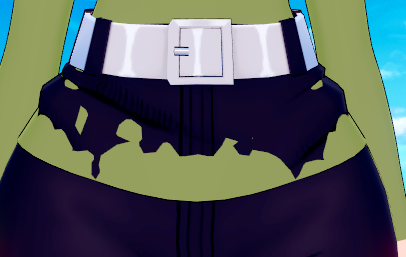
I'm sure other people have used these clothes before. So, If @White_Runner is not going to declare me a thief, I would like to ask a question. how can I solve this problem with clothes?

 
Heineken

Heineken

New member
Joined
Oct 19, 2025
Messages
10
Reaction score
2
Points
3
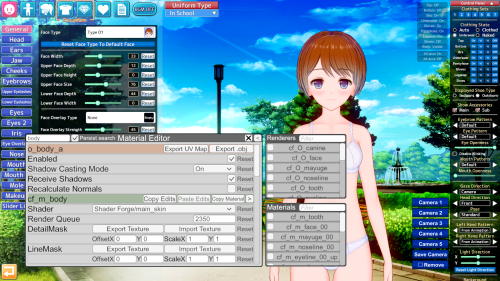
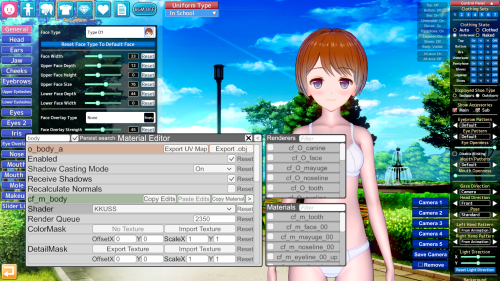
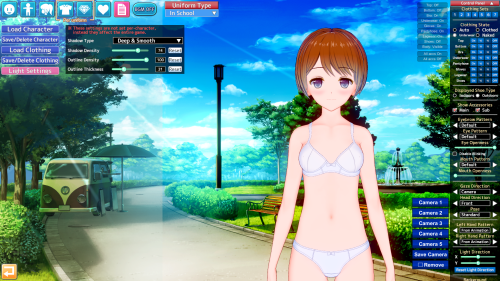
you can change the shaders of the body, face, etc. with material editor.
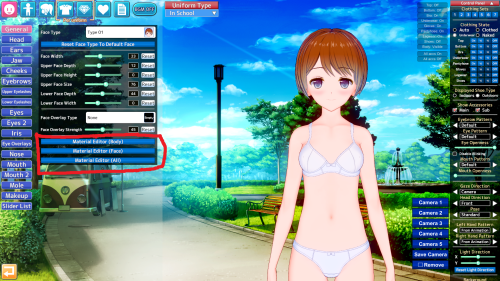


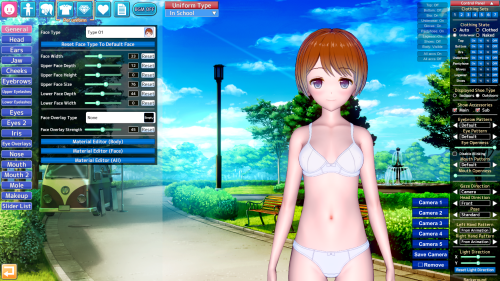
and adjust the light settings here
also check the #guides channel in the koikatsu discord
https://discord.gg/hevygx6
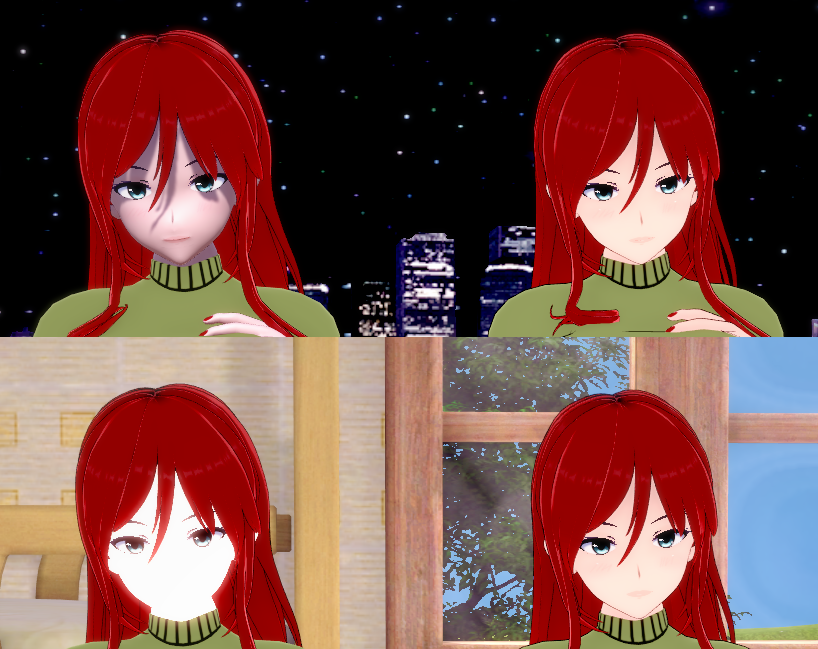
Thank you for your response. Unfortunately, I’m currently unable to use Discord (it’s banned in my country and I have to use a VPN, so sometimes messages don’t appear). I have a question for you. I changed the shaders in the example you provided to KKUSS. To compare, I saved the same character again with a different shader (xukmi). The character with the KKUSS shader looks great on some maps, but on certain maps, it inexplicably appears too bright or overexposed. I’ve tried turning off the lights in the map through the Workspace, but it doesn’t help. Do you know how to make the character consistently appear like the example above?


I also have a second question. The outline of the character with the KKUSS shader is unfortunately unclear. I maxed out the outline thickness in the Scene Effects, but it didn’t fix the issue. I hope my questions aren’t bothering you.
 
zeidhan29

zeidhan29

KK Master
Joined
Sep 17, 2025
Messages
300
Reaction score
708
Points
93
Thank you for your response. Unfortunately, I’m currently unable to use Discord (it’s banned in my country and I have to use a VPN, so sometimes messages don’t appear). I have a question for you. I changed the shaders in the example you provided to KKUSS. To compare, I saved the same character again with a different shader (xukmi). The character with the KKUSS shader looks great on some maps, but on certain maps, it inexplicably appears too bright or overexposed. I’ve tried turning off the lights in the map through the Workspace, but it doesn’t help. Do you know how to make the character consistently appear like the example above?


I also have a second question. The outline of the character with the KKUSS shader is unfortunately unclear. I maxed out the outline thickness in the Scene Effects, but it didn’t fix the issue. I hope my questions aren’t bothering you.
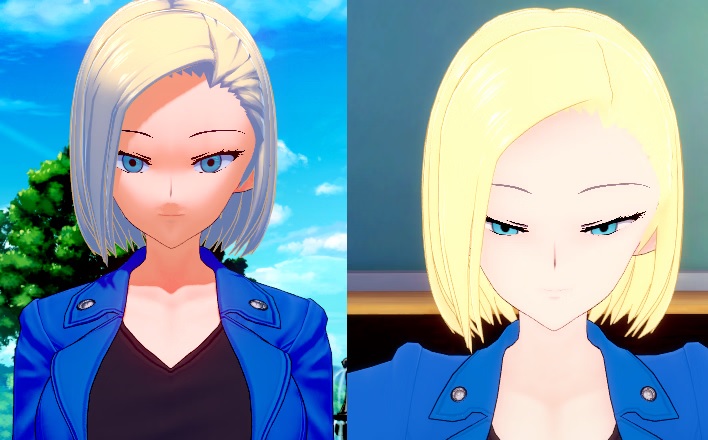
Personally, I don't like working with KKUSS because you have to calibrate Rimlight, colors (addcolor), and shadowpower and specular intensity, as it handles a more "realistic" type of light and shadow projection.

That's partly one of the reasons why some prefer KKUTS or another shader like xukmi.

All of this is visible with the material editor. I'd even like to teach you, but when I saw the whole issue behind this shader, I saved myself the effort and took an easier route.
 
F

Fobder

Member
Joined
Feb 22, 2025
Messages
36
Reaction score
21
Points
8
Mightymeat SDs have .wav files inside to go with the SDs. How do you add them to studio? And does the SD automatically have the .wav file used as it starts if it was placed in the koikatsu folders correctly?
 
Heineken

Heineken

New member
Joined
Oct 19, 2025
Messages
10
Reaction score
2
Points
3
Personally, I don't like working with KKUSS because you have to calibrate Rimlight, colors (addcolor), and shadowpower and specular intensity, as it handles a more "realistic" type of light and shadow projection.

That's partly one of the reasons why some prefer KKUTS or another shader like xukmi.

All of this is visible with the material editor. I'd even like to teach you, but when I saw the whole issue behind this shader, I saved myself the effort and took an easier route.
There are honestly way too many problems. The character with the Xukmi render doesn’t react to any kind of lighting, even the shadows in the character lighting section don’t work. I’m sure there’s a fix for it, but it’s too complicated for me. Which shader are you using? Default one, maybe?
 
Heineken

Heineken

New member
Joined
Oct 19, 2025
Messages
10
Reaction score
2
Points
3
Thank you for your response. Unfortunately, I’m currently unable to use Discord (it’s banned in my country and I have to use a VPN, so sometimes messages don’t appear). I have a question for you. I changed the shaders in the example you provided to KKUSS. To compare, I saved the same character again with a different shader (xukmi). The character with the KKUSS shader looks great on some maps, but on certain maps, it inexplicably appears too bright or overexposed. I’ve tried turning off the lights in the map through the Workspace, but it doesn’t help. Do you know how to make the character consistently appear like the example above?


I also have a second question. The outline of the character with the KKUSS shader is unfortunately unclear. I maxed out the outline thickness in the Scene Effects, but it didn’t fix the issue. I hope my questions aren’t bothering you.
I noticed that none of the characters, except those using the KKUSS shader, respond to character lighting in Studio. (However, there’s no problem in the character creation screen.) I tried adding several different lights and tested again, but the result didn’t change. How can I fix this issue?


zeidhan29

zeidhan29

KK Master
Joined
Sep 17, 2025
Messages
300
Reaction score
708
Points
93
There are honestly way too many problems. The character with the Xukmi render doesn’t react to any kind of lighting, even the shadows in the character lighting section don’t work. I’m sure there’s a fix for it, but it’s too complicated for me. Which shader are you using? Default one, maybe?
KKUTS i use, i really sorry I couldn't help you.

KKUTS is almost the same as KKUSS, except it doesn't have this light and shadow detail. It does have some issues with the hair, but they're nothing compared to the problems KKUSS has.
 
gustavo40

gustavo40

KK Master
Joined
May 17, 2025
Messages
202
Reaction score
922
Points
93
I'm sure other people have used these clothes before. So, If @White_Runner is not going to declare me a thief, I would like to ask a question. how can I solve this problem with clothes?

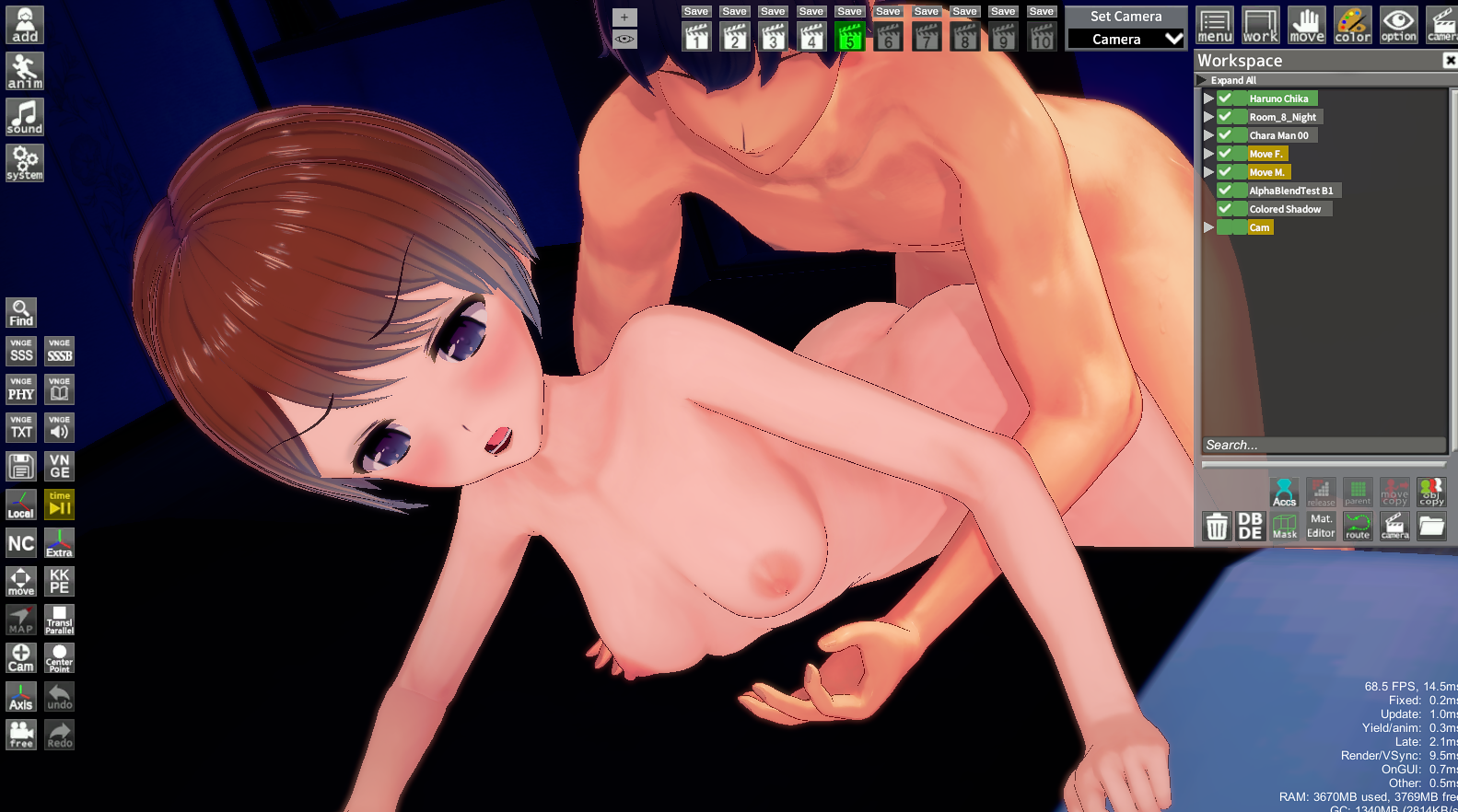
Try adding an alpha mask to the shirt using Material Editor.
Also, what's the name of those pants?
 
A

astralsword

Active Member
Joined
Jul 14, 2025
Messages
61
Reaction score
47
Points
18
im trying to import a timeline scene while having one already loaded at the same time but whenever i do that the timeline duration changes and cut off the full animation... any solution?
 
dactohab

dactohab

Well-known Member
Joined
Oct 12, 2024
Messages
65
Reaction score
111
Points
33
does anyone know a way to change female bust size and make male hand go along with it in this scene? i want to change character with smaller bust size...


kayamiasako

kayamiasako

KK Master
Joined
Apr 24, 2025
Messages
184
Reaction score
879
Points
93
non koikatsu related

(機械翻訳です、お詫び申し上げます)
日本語が堪能な方は、これを解決するのを手伝ってくれませんか?

can someone fluent in Japanese help me with this stupid password hint?

here's what I've gotten so far.
1st flower - clematis くれまちす

2nd flower - morning glory あさがお

3rd flower - sunflower ひまわり

then the meaning of 9 roses. Which, I've got here: いつも一緒にいよう
but it's not working. I know there's no spaces or punctuation, and it has to be written in hiragana. no translation or anything has helped me. any help is appreciated. my Japanese is really bad.
 
D

Dembigtiddies

New member
Joined
Oct 30, 2025
Messages
28
Reaction score
5
Points
3
(Make sure to do a backup before if it doesn't work)
Put this in Koikatu\Koikatu_Data\Managed and Koikatu\CharaStudio_Data\Managed
All credit to Anon11 from Koikatsu Discord.

Could anyone reupload this or point me to any other way to load KKS scenes in regular KK? Thanks in advance.
 
cesarnator

cesarnator

Veteran Member
Joined
May 13, 2025
Messages
112
Reaction score
435
Points
63
HllRzer

HllRzer

Active Member
Joined
Sep 8, 2025
Messages
22
Reaction score
54
Points
13
I recently discovered Koikatsu, and there are a few things I’d like to learn. For example, how can I make my characters look better? In some games, the characters look really good. The colors, the lighting, the shading, everything looks amazing.

But the characters I create, at best, look... average. You know, like those characters from the hundreds of games that get abandoned after the first or second chapter because the developer didn’t put much effort into them. There are a few popular games made with Koikatsu, and their characters look incredibly well-made. What’s the secret behind that? What do you guys pay attention to when creating your characters?

For some reason, I can’t upload a photo right now, but to give an example; the characters in Futa’s World of NTR look really good. I’m not talking about facial or body attractiveness, but rather how the colors and shading look so professional. I also want to make good looking characters that have been worked on, but I have no idea how to do it. Any help would be appreciated.
You might find this collection of guides useful. Start with the character creation guide folder and don't be afraid to experiment. As for making scenes look special, most of it is framing (or is composition the correct term) and 2D effects like subtraction shadows and image plates.
 
D

Dembigtiddies

New member
Joined
Oct 30, 2025
Messages
28
Reaction score
5
Points
3
S

Stigma

KK Master ❤
Joined
Apr 5, 2025
Messages
403
Reaction score
1,298
Points
93
@ObitoHan
It's already sorted by date (newest on top). You can handle the others yourself using windows explorer, separating the scenes you want into different folders as you see fit.

Also try asking your question in this other thread here, help keep the card sharing thread clean
 
LETHIMCOOK

LETHIMCOOK

Veteran Member
Joined
Jan 3, 2025
Messages
31
Reaction score
328
Points
53
Heyo fellas, I've got a question in regards to some ImSayaa34 scenes. In some of them, particularly scenes where it's a BJ, after switching out the character, the penis glitches out and starts pointing upwards and not staying in the mouth. I don't have the Better Scaling plugin either so it's not that messing it up. It's just after switching characters, as when I just load it up normally with the original character that's in the scene it works fine.

Image for reference.
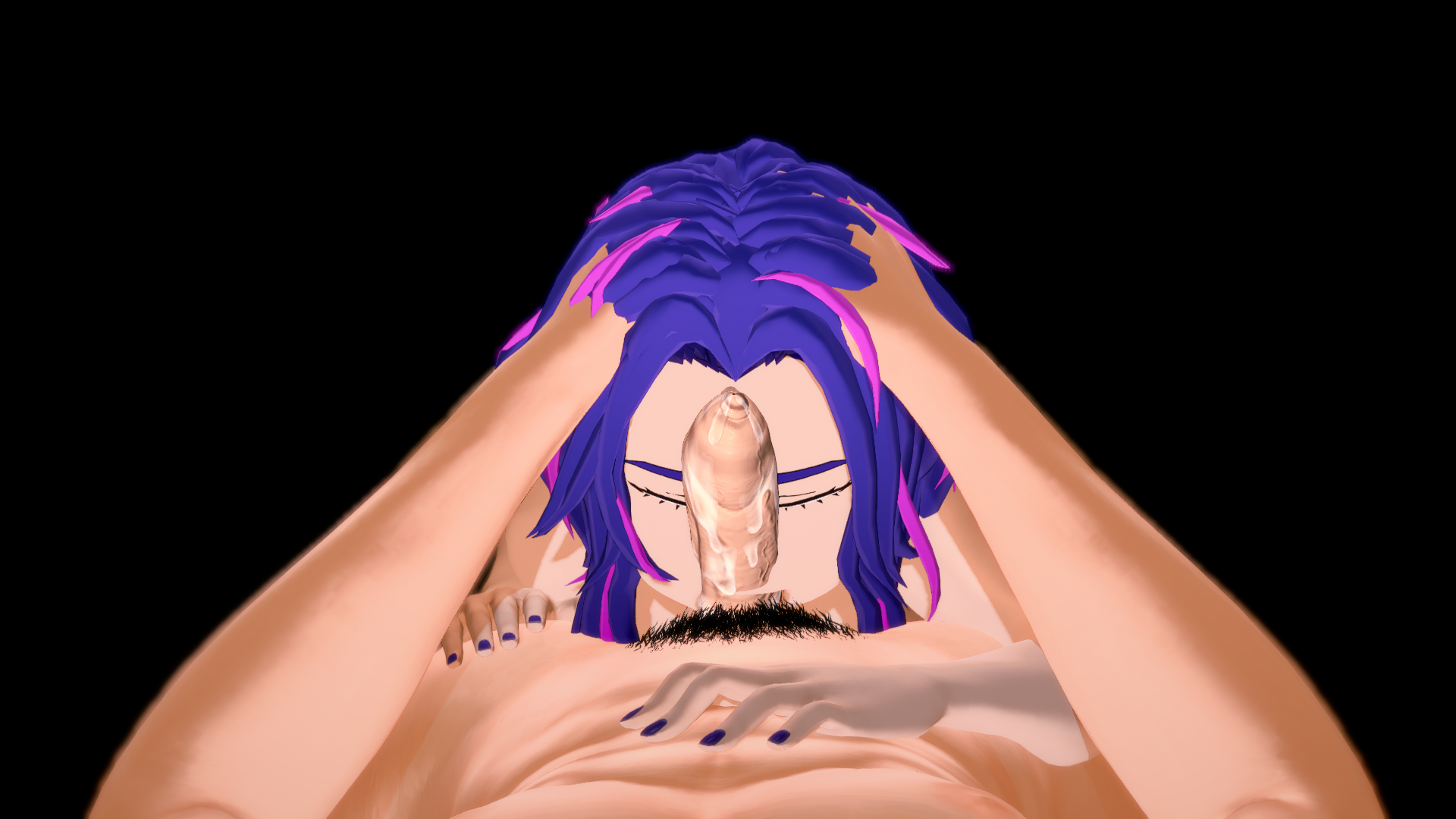
Yo, wondering if anyone is able to help me with this still?
 
zeidhan29

zeidhan29

KK Master
Joined
Sep 17, 2025
Messages
300
Reaction score
708
Points
93
Yo, wondering if anyone is able to help me with this still?
Do you use better penetration?

Or is it a job done with dynamic bones?

 
LETHIMCOOK

LETHIMCOOK

Veteran Member
Joined
Jan 3, 2025
Messages
31
Reaction score
328
Points
53
Do you use better penetration?

Or is it a job done with dynamic bones?

The original scene just has this for the bone colliders, so I assume it's done with better penetration? It's an imsayaa scene from June, this one here

 
B

ball_breakr

New member
Joined
Nov 3, 2025
Messages
2
Reaction score
0
Points
1

I noticed that in some HC scenes that the map clips into the camera's view slightly.
How to fix? Am I missing a zipmod or something else?
 
L

Leprosky

Well-known Member
Joined
Oct 26, 2025
Messages
45
Reaction score
135
Points
33
[Warning, Message:Sideloader] Missing zipmod! Some items are missing! - GF : GF mods
[Warning:Sideloader] [UAR] WARNING! Missing mod detected! [com.gf.collection.ver120] none
[Warning, Message:Sideloader] Missing zipmod! Some items are missing! - aa1.hair.v4.2
[Warning:Sideloader] [UAR] WARNING! Missing mod detected! [aa1.hair.v4.2]
[Warning, Message:Sideloader] Missing zipmod! Some items are missing! - Augh : Fat Socks
[Warning:Sideloader] [UAR] WARNING! Missing mod detected! [Augh.FatSocks]


Does anyone have these? I already downloaded both but somehow it seems to be incorrect version?
1b4b8t6.png

5z3Tu4Z.png
 
L

Leprosky

Well-known Member
Joined
Oct 26, 2025
Messages
45
Reaction score
135
Points
33
Does anyone know what plugin that breaks most [Sui] headmod?
s1DUriG.png
 
Caleb_belaC

Caleb_belaC

Senior Member
Joined
May 7, 2025
Messages
36
Reaction score
271
Points
53
Does anyone know how to fix a shader just being white? On recent Roku scenes the maps is just all white like this.
It is only this specific shader. So to fix it I have to go into each asset that Roku is using and swap the shader but that can take a while depending on the scene. I have updated meterial editor. but maybe im missing an update to whatever shader this is from.
bRjVGnL.png

Oei6SxO.jpeg


K

komu

New member
Joined
Oct 1, 2025
Messages
4
Reaction score
2
Points
3

Maybe i miss something, can someone help me to make the watermark not follow the camera and disappear please.
Thank you!
 
cesarnator

cesarnator

Veteran Member
Joined
May 13, 2025
Messages
112
Reaction score
435
Points
63

Maybe i miss something, can someone help me to make the watermark not follow the camera and disappear please.
Thank you!
4euGkNX.png
 
LETHIMCOOK

LETHIMCOOK

Veteran Member
Joined
Jan 3, 2025
Messages
31
Reaction score
328
Points
53
Is anyone still able to help with the issue I have in regards to the imsayaa scene?
 
izu914

izu914

KK Master
Joined
Aug 29, 2024
Messages
179
Reaction score
697
Points
93
Is anyone still able to help with the issue I have in regards to the imsayaa scene?
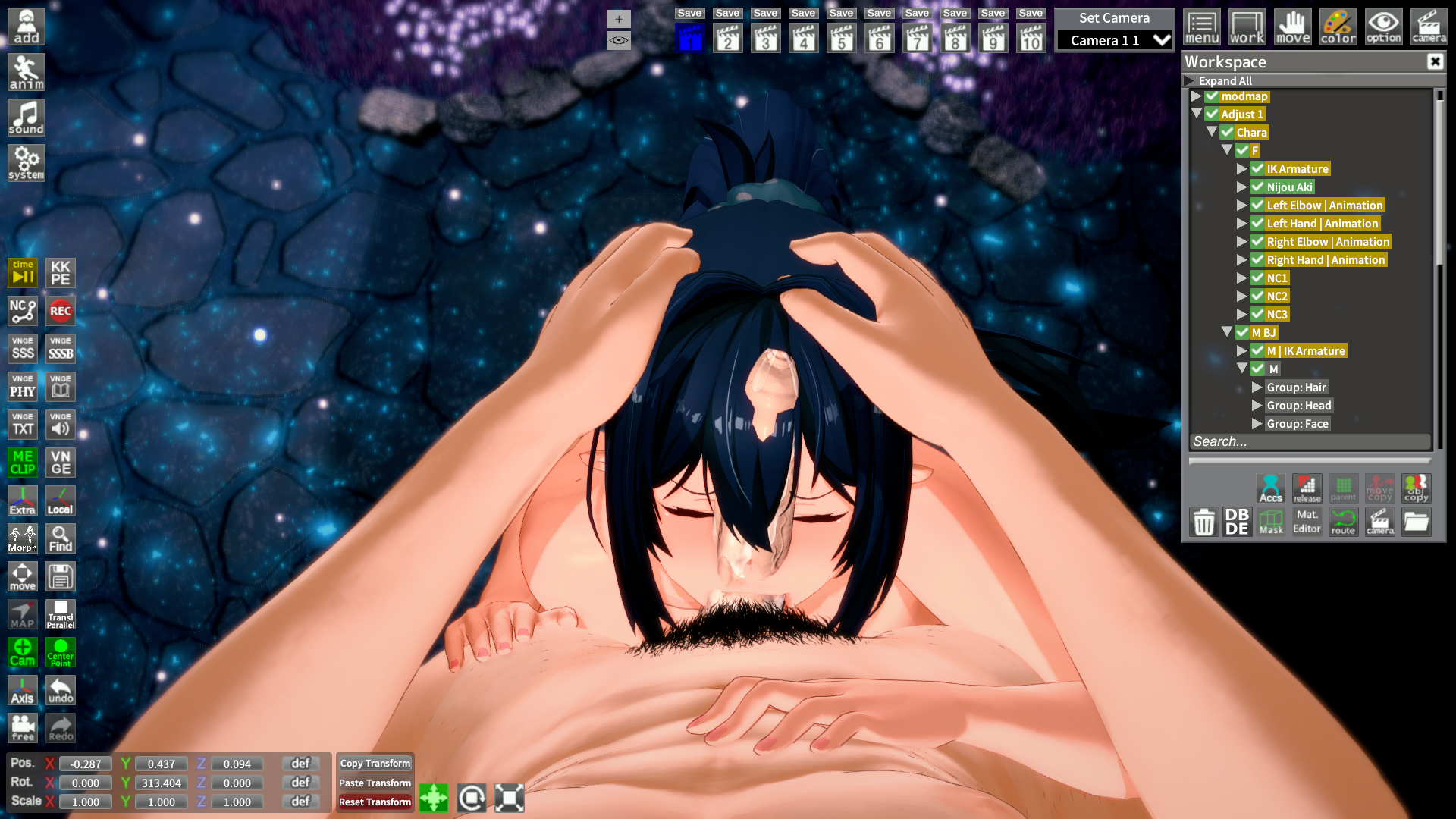
w9y2kEd.png

It has a node constraint
a_n_mouth->k_f_dan_entry
Also
The penis item is parented to the penis node in the workspace on male body, so it's aligned with the male uncensor
Wherever the bp points, that's where the penis item will point

Try to play with that
 
-LiuGong-

-LiuGong-

Well-known Member
Joined
Aug 30, 2024
Messages
88
Reaction score
113
Points
33
What programs are used to record and upload GIFs on pixiv? I have some scenes with timelines that I want to upload to my account, but I'm not quite sure how to do it.

 
cesarnator

cesarnator

Veteran Member
Joined
May 13, 2025
Messages
112
Reaction score
435
Points
63
What programs are used to record and upload GIFs on pixiv? I have some scenes with timelines that I want to upload to my account, but I'm not quite sure how to do it.
video export
this might be helpful
 
U

userKnwn

Active Member
Joined
Nov 6, 2025
Messages
18
Reaction score
36
Points
13
Hello,
I'm having an issue with Full-Body Thighs (Bra), were the the upper part of it is invisible by default, does anybody know how to fix it?
n91xPo6.png
 
S

SomeGoat

New member
Joined
May 25, 2025
Messages
11
Reaction score
8
Points
3
nJiZM7m.png


The wonders of trying to make your own hair accessory (or accessory hair as wog calls it) zipmod...
I'm not quite understanding what went wrong. I set up the AssetBundles, put the material in the mesh (pure white texture in Maintex for testing purposes), set up the accessory and custom hair components, made sure that the shader used for the material is main_hair as instructed...
While the csv is adapted from the example and thus this is technically "fringe" accessory hair, it shouldn't matter.

Oh, and the mesh misalignment is just some rigging jank I'll work out on the next .fbx iteration I send in (exported from 2.9)
Something weird I noted is that an iteration of the built zipmod was slightly screwed and didn't have the mesh in it, but it was then it showed the accessory hair colouring settings.
With the mesh in, however, the hair colour settings are now gone.

Big combined image of how the relevant parts* look like right now (pcloud upload of them separate, plus some extras in the folder after I edited the big image)
OnFMe92.png

*I'm not sure if anyone needs any more info from me but

History of how I made the thing in question:
Made with bezier curves with suitable optimization at curve-level, but overlaps generally left as-is
Left side was mirrored
A few vertex modelling fixes
Then each curve while separate had their UVs set up to what made sense
Joined the meshes to the three pieces
Tested the colour mask in Blender to see that it worked (it does)
Did some basic rigging on the main "tail"
Originally treated as three separate meshes, but I joined them upon first getting problems at the Unity step
We're basically at where we are right now

What I've tried and haven't that I think is relevant to fixing the material issue:
Tried:
Different variants of putting the SkinnedMeshRenderer somewhere in the components
Double-triple-loop sanity checked the textures (not that it matters)
Double-triple-loop sanity checked the other settings I can remember being relevant
Changed shader back and forth from/to Main_hair
Grabbed the example hair's shaders
Changed maintex
(I think that's it, from my memory)
Have yet to:
Try changing the category and kind in the accessory .csv (It shouldn't matter... But also I legit just don't know them and I've yet to find a coherent list that's not digging into a mod's files)
Tried doing the same to a basic cube exported from blender
Can't come up with any other potential holes currently

The one time it actually got colour in previous attempts was when it was responding to the material's own settings, but no accessory stuff.

Oh, and as the siggy indicates, I don't have discord, and I have my reasons to avoid discord. If you do wish to refer to something in there, I suggest getting screencaps or exporting the chat.

TL;DR: While I can probably work around materials in generals not working, the accessory not being recognized as accessory hair is the main issue
 
izu914

izu914

KK Master
Joined
Aug 29, 2024
Messages
179
Reaction score
697
Points
93
nJiZM7m.png


The wonders of trying to make your own hair accessory (or accessory hair as wog calls it) zipmod...
I'm not quite understanding what went wrong. I set up the AssetBundles, put the material in the mesh (pure white texture in Maintex for testing purposes), set up the accessory and custom hair components, made sure that the shader used for the material is main_hair as instructed...
While the csv is adapted from the example and thus this is technically "fringe" accessory hair, it shouldn't matter.

Oh, and the mesh misalignment is just some rigging jank I'll work out on the next .fbx iteration I send in (exported from 2.9)
Something weird I noted is that an iteration of the built zipmod was slightly screwed and didn't have the mesh in it, but it was then it showed the accessory hair colouring settings.
With the mesh in, however, the hair colour settings are now gone.

Big combined image of how the relevant parts* look like right now (pcloud upload of them separate, plus some extras in the folder after I edited the big image)
OnFMe92.png

*I'm not sure if anyone needs any more info from me but

History of how I made the thing in question:
Made with bezier curves with suitable optimization at curve-level, but overlaps generally left as-is
Left side was mirrored
A few vertex modelling fixes
Then each curve while separate had their UVs set up to what made sense
Joined the meshes to the three pieces
Tested the colour mask in Blender to see that it worked (it does)
Did some basic rigging on the main "tail"
Originally treated as three separate meshes, but I joined them upon first getting problems at the Unity step
We're basically at where we are right now

What I've tried and haven't that I think is relevant to fixing the material issue:
Tried:
Different variants of putting the SkinnedMeshRenderer somewhere in the components
Double-triple-loop sanity checked the textures (not that it matters)
Double-triple-loop sanity checked the other settings I can remember being relevant
Changed shader back and forth from/to Main_hair
Grabbed the example hair's shaders
Changed maintex
(I think that's it, from my memory)
Have yet to:
Try changing the category and kind in the accessory .csv (It shouldn't matter... But also I legit just don't know them and I've yet to find a coherent list that's not digging into a mod's files)
Tried doing the same to a basic cube exported from blender
Can't come up with any other potential holes currently

The one time it actually got colour in previous attempts was when it was responding to the material's own settings, but no accessory stuff.

Oh, and as the siggy indicates, I don't have discord, and I have my reasons to avoid discord. If you do wish to refer to something in there, I suggest getting screencaps or exporting the chat.

TL;DR: While I can probably work around materials in generals not working, the accessory not being recognized as accessory hair is the main issue
So
Your problem is that the hair is not being affected by the color picker?
What I see is that you are trying to use the accessory component and the custom hair component together
Afaik
You don't need both, just pick one (accessory one is the usual way)
Everything else looks okay (at least of what you show in the screenshots)
 
S

SomeGoat

New member
Joined
May 25, 2025
Messages
11
Reaction score
8
Points
3
So
Your problem is that the hair is not being affected by the color picker?
What I see is that you are trying to use the accessory component and the custom hair component together
Afaik
You don't need both, just pick one (accessory one is the usual way)
Everything else looks okay (at least of what you show in the screenshots)
I want it to be affected by the hair colour picker in which the Wogrim guide says to apply the hair component
It's an accessory hair/hair accessory
 
youyouling

youyouling

Member
Joined
Feb 27, 2025
Messages
6
Reaction score
28
Points
13
How to use the Stiletto plugin on leisehg's character card?
In the character creation interface, his character's shoes are not named, so after adjusting the Stiletto plugin, I can't save it. How to solve this?
 
M

Muffy

Well-known Member
Joined
Dec 5, 2024
Messages
39
Reaction score
98
Points
18
Thank you for your response. Unfortunately, I’m currently unable to use Discord (it’s banned in my country and I have to use a VPN, so sometimes messages don’t appear). I have a question for you. I changed the shaders in the example you provided to KKUSS. To compare, I saved the same character again with a different shader (xukmi). The character with the KKUSS shader looks great on some maps, but on certain maps, it inexplicably appears too bright or overexposed. I’ve tried turning off the lights in the map through the Workspace, but it doesn’t help. Do you know how to make the character consistently appear like the example above?


I also have a second question. The outline of the character with the KKUSS shader is unfortunately unclear. I maxed out the outline thickness in the Scene Effects, but it didn’t fix the issue. I hope my questions aren’t bothering you.
Not him, but KKUS/KKUTS shaders are lit entirely from the "Character Lighting" menu. These shaders are ALMOST completely unaffected from added environment lights. They are also largely unaffected by chosen shadow types in "Scene Effects".

These shaders appear too bright or too dark when added to random scenes because those scenes are saved with particular lighting settings, in addition to loads of other things like post processing effects and outline settings.

To keep your KKUS/KKUTS characters lit consistently, you need to make a "scene preset." Start with an empty scene. Add your character which contains the shaders. Adjust character lighting, post-processing effects, scene effect LUTs, etc to your liking, then save the scene.

When you load up a scene you intend to add this character into, you'll want to merge your "scene preset" into it. You can do this by opening the scene you wanna replace characters in, then load a scene. Select your preset scene, then click "import". This will replace all the lighting settings and such with the ones utilized by your preset.

The downside to this is some scenes will utilize specific LUTs, fog settings, Post Processing Effects, etc that will give it a particular color appearance, but those options won't really effect overall lighting, just the color correction of the scene. So doing this will overwrite those with the ones coming from the merged scene.

You can fix this by documenting what LUT settings (under Scene Effects) and light colors (in Character Lighting) were originally used, BEFORE you merge, and switch them back to what they were after the merge. You can also save the Post-Processing Effects used as a preset (search "Save_PostProcessingEffects" in F1 menu to bind this to a shortcut).

The final steps would look something like this:
  1. Load scene you want to fuck around with
  2. take note of LUTs and lighting colors in Scene Effects and Character Lighting
  3. Save a post processing preset for the scene
  4. Import your generic lighting scene
  5. Switch LUTs and lighting colors back to their original ones
  6. Load the post-processing preset you made before you imported your scene
Doing this SHOULD give you the most consistent lighting results, while also maintaining the intended color corrections used by the scene author.

In regards to outlines, there are a few different ways this can be achieved. Outlines can be made/altered the following three ways:
  1. Outline settings from "Scene Effects" (density, thickness)
  2. Outline settings for a specific material on a character (shader dependent)
  3. SobelColorOutline from Post Processing Effects
Typically, you can adjust most outline settings in Scene Effects. If you are seeing not much of a difference when doing this, that character MOST LIKELY has specific Outline settings and texture maps purpose built for outlines on one or more materials, and this would be entirely dependent on the shaders used for those materials as not every one is capable of doing anything with outlines.

I have found SobelColorOutline in Post Processing Effects to be quite good at getting a quick and dirty outline if I do not feel like dicking around with deconstructing a dozen different materials to figure out how their outlines are being produced so I can tweak them more finely.

EDIT
Something totally worth mentioning here is Studio will ALWAYS look different than Maker. Maker does not fully support PostProcessingEffects, so a majority of the time you will get differently lit/color corrected characters when using them in the Studio.

For this reason, I pretty much only use Maker for body/face/outfit creation, and perform all material tweaks in Studio, export the character once I've got the materials all dialed in the way I like, then run it back through Maker for a final save.
 
Last edited:
H

Hassan

New member
Joined
Sep 12, 2025
Messages
5
Reaction score
0
Points
1

When I play Koikatsu in VR and load scenes, green spheres appear like this. Does anyone know how to remove them?
 
HllRzer

HllRzer

Active Member
Joined
Sep 8, 2025
Messages
22
Reaction score
54
Points
13
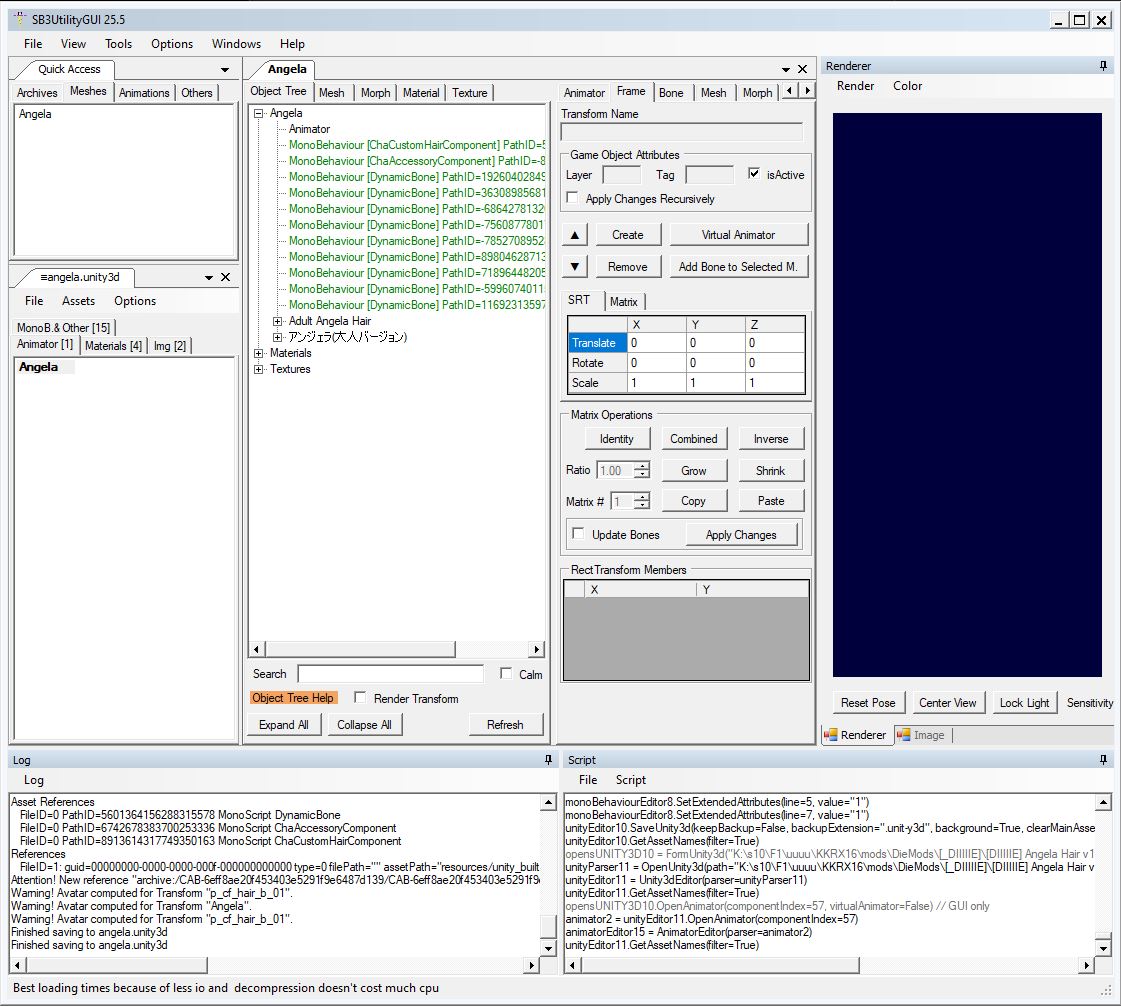
Can you take a pic of what your asset bundle looks like in SB3U? I had a similar issue before and I fixed it by rearranging the tree structure.
 
Top